
WorldEdit: BE Documentation
Requirements:
By default, players are not allowed to use WorldEdit. Only those tagged with "worldedit" can use its features. To give yourself all worldedit permissions, enter /tag @s add worldedit in chat. You should then receive a message saying that you have been giving WorldEdit permissions.Tip
You can also give other players worldedit permissions.
/tag @s add worldedit
- @s yourself
- @p nearest player
- @a all players
- @r random player
Commands:
Unlike the classic version of Java (which uses a double prefix // ), WorldEdit-BE exclusively uses the semicolon ( ; ) for all its commands. This avoids any conflicts with the Bedrock Edition's native command parser. This could change in the future when the game's API is more capable.- Correct Syntax: ;set stone, ;undo, ;wand.
- Incorrect Syntax: /set stone, //set stone.
Command List:
;help- Show help information;wand- Get the WorldEdit wand;set- Set blocks to a specific type;replace- Replace blocks with another type;copy- Copy the selected area;paste- Paste the copied area
Navigation:
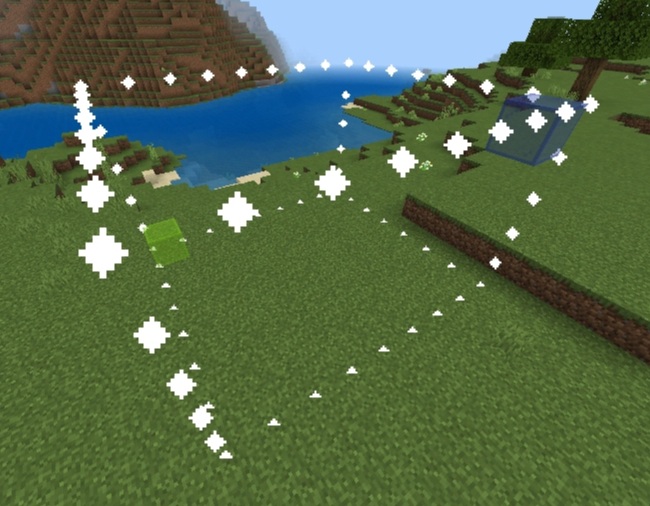
Getting from point A to point B can sometimes be a hassle. Luckily, this addon comes with what's known as a navigation wand. To get one, enter the command ;navwand, or grab an ender pearl, the default item for this wand. Once you have this item, just interact with it to get teleported to the spot you are looking at. Want to get on the otherside of a wall or ceiling? Use the wand while sneaking to go right through it! Stuck in a block? Using the wand will get you unstuck!tip
Making selections:
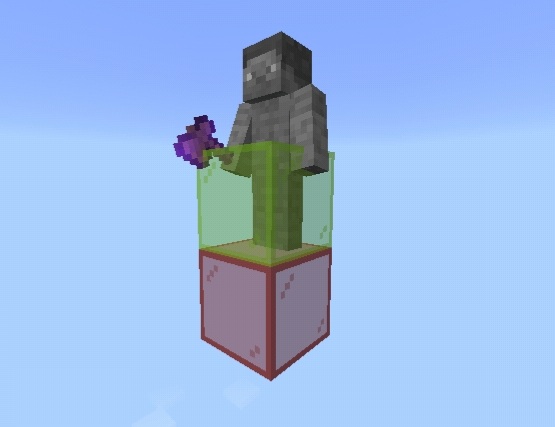
The core of WorldEdit is based on defining a three-dimensional space (cuboid) for modification. This is done using the Selection Wand (a Wooden Axe by default).- Type ;wand to get the selection tool in your hand, or pick up a wooden axe.
- Set Position 1 (;pos1): Break a block with the axe in the corner you want to be the first position.
- Set Position 2 (;pos2): Go to the diagonal opposite corner of your cuboid and interact with a block (right click / tap).
tip
Kit items for convenience:
There are many operations in WorldEdit that we may commonly use, such as undoing, and copying structures. To make this addon more convenientKit items for convenience:
There are many operations in WorldEdit that we may commonly use, such as undoing, and copying structures. To make this addon more convenient for players on any device, it comes with a set of items that act as a shortcut to these common WorldEdit functions. To receive this kit, just type ;kit.Playing with brushes:
The kit also provides a way to make brushes.
- Get a shovel of any type.
- Place down cobblestone; you'll need it for the brush.
- Use the "WorldEdit Settings" item. A menu should appear including "Brush Settings". Select that button, then create a new brush as the interface instructs you. Make it a sphere brush of radius 3, and a cobblestone pattern. Confirm the settings and exit the menu.
- Aim at the ground not near you and interact with the bound item (now brush) to place cobblestone spheres.
- Enter the brush settings again to set the mask for the brush to grass. Use the brush now to make a cobblestone path.
- Delete the brush from the menu to disable it.
WorldEdit: BE Documentación
Warning
Requisitos:
De forma predeterminada, los jugadores no pueden utilizar WorldEdit. Sólo aquellos etiquetados con "worldedit" puede utilizar sus funciones. Para darte todo el mundo permisos, ingrese /tag @s add worldedit en el chat. Luego debería recibir un mensaje que le indique que ha otorgado permisos a WorldEdit.Tip
También puedes otorgar permisos de WorldEdit a otros jugadores.
/tag @s add worldedit
- @s tú mismo
- @p jugador más cercano
- @a todos los jugadores
- @r jugador aleatorio
Comandos:
A diferencia de la versión clásica de Java (que usa un prefijo doble // ), WorldEdit-BE utiliza exclusivamente el punto y coma ( ; ) para todos sus comandos. Esto evita cualquier conflicto con el analizador de comandos nativo de la Edición Bedrock. Esto podría cambiar en el futuro cuando la API del juego sea más capaz.- Sintaxis correcta: ;set stone, ;undo, ;wand.
- Sintaxis incorrecta: /set stone, //set stone.
Lista de Comandos:
;help- Mostrar información de ayuda;wand- Obtener el bastón de WorldEdit;set- Establecer bloques a un tipo específico;replace- Reemplazar bloques con otro tipo;copy- Copiar el área seleccionada;paste- Pegar el área copiada
Navegación:
Ir de un punto A a un punto B puede ser a veces complicado. Afortunadamente, este complemento viene con lo que se conoce como un bastón de navegación. Para obtener uno, ingresa el comando ;navwand, o agarra una perla de ender, el objeto predeterminado para este bastón. Una vez que tengas este objeto, simplemente interactúa con él para ser teletransportado al lugar que estás mirando. ¿Quieres llegar al otro lado de una pared o techo? Usa el bastón mientras te agachas para atravesarlo! Atascado en un bloque? !Usando el bastón te desbloqueará!tip
Haciendo selecciones:
El núcleo de WorldEdit se basa en definir un espacio tridimensional (cuboide) para su modificación. Esto se hace usando la Varita de Selección (un Hacha de Madera por defecto).- Escriba ;wand para tener la herramienta de selección en su mano, o tome un hacha de madera.
- Establecer Posición 1 (;pos1, ;1): Rompe un bloque con el hacha en la esquina que deseas que sea la primera posición.
- Establecer Posición 2 (;pos2, ;2): Ve a la esquina opuesta diagonal de tu cuboide y interactúa con un bloque (clic derecho / toque).
tip
Artículos del kit para mayor comodidad:
Hay muchas operaciones en WorldEdit que podemos usar comúnmente, como Hay muchas operaciones en WorldEdit que podemos usar comúnmente, como como deshacer y copiar estructuras. Para hacer este complemento más conveniente para jugadores en cualquier dispositivo, viene con un conjunto de elementos que actúan como acceso directo a estas funciones comunes de WorldEdit. Para recibir este kit, solo escribe ;kit.Jugando con pinceles:
El kit también proporciona una manera de hacer pinceles.
- Consigue una pala de cualquier tipo.
- Coloca piedras de cobblestone; la necesitarás para el pincel.
- Utiliza el elemento "Configuración de WorldEdit". Debería aparecer un menú que incluye "Configuración de pincel". Selecciona ese botón, luego crea un nuevo pincel según las instrucciones de la interfaz. Hazlo un pincel esférico de radio 3 y un patrón de piedra de adoquín. Confirma la configuración y sal del menú.
- apuntar al suelo no cerca de ti e interactuar con el elemento vinculado (ahora pincel) para colocar esferas de piedra de adoquín.
- Ingresa la configuración del pincel nuevamente para establecer la máscara del pincel a pasto. Usa el pincel ahora para hacer un camino de piedra de adoquín.
- Borra el pincel del menú para desactivarlo.